Barracuda Introduction to Quarantine
The quarantine reports are scheduled to send at 8a, 12p, 4p, 8p every day. If you received a new quarantined message since the previous report, you would get an email notification that looks like this:
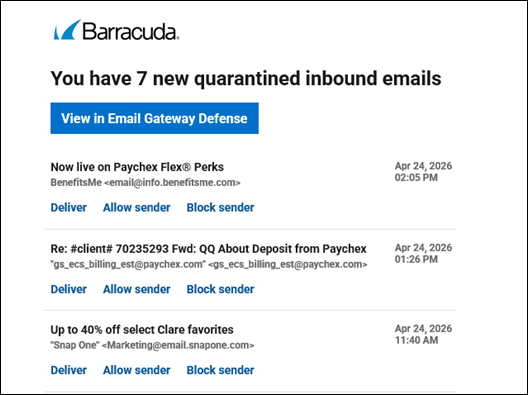
If you receive this notice, you have a few options:
- View in Email Gateway Defense: Opens the website where you can view these messages. Use this option if you’re not sure about the messages and need more info.
- Deliver: Moves the email from quarantine to your inbox. Select this if you’re confident the message is safe.
- Allow Sender: Adds the sender of the email to the “Allow List”; all messages from them will be delivered. Only do this for contacts you regularly interact with.
- Block Sender: Adds the sender of the email to the “Block List”; all messages from them will be blocked.
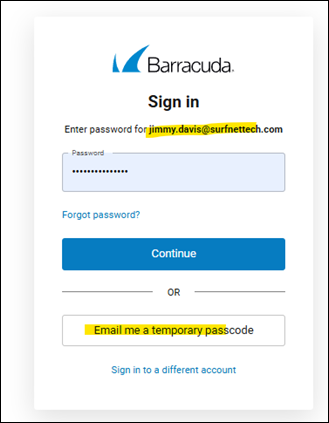
The Email Gateway Defense portal asks you to sign-in. If you don’t know your password, you can use the Temporary Passcode option or let us know and we can reset it for you.
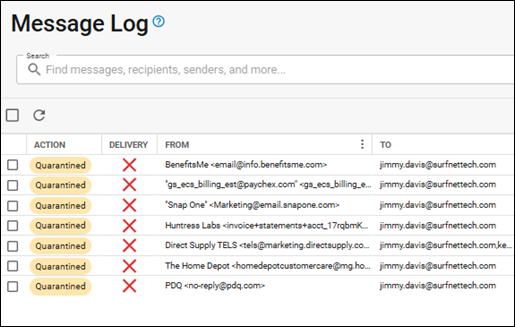
Then you can see all your Quarantined messages:
When you click on one of the emails, it will open and give you some options:
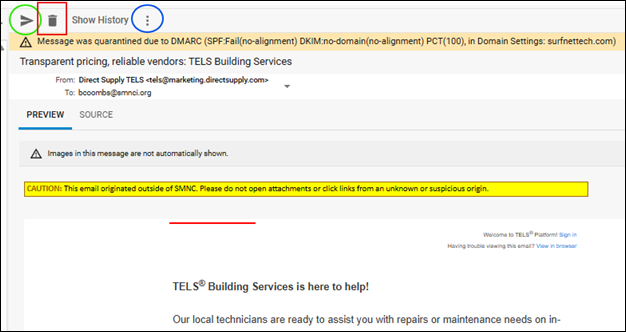
- Paper Airplane – Deliver the message to your regular inbox
- Trash Can – Delete the message from your Quarantine
- Three Dots – will give you more options:
- Download Message – Saves a copy of the email to your local downloads folder.
- Add Sender Email to Block List – The sender’s email address will be blocked forever.
- Add Sender Domain to Block List – The sender’s whole domain will be blocked forever.
- Be careful with this. If you block “gmail.com” for example, you’ll block all Gmail addresses from being able to message you.
Was this article helpful?
That’s Great!
Thank you for your feedback
Sorry! We couldn't be helpful
Thank you for your feedback
Feedback sent
We appreciate your effort and will try to fix the article